
Laptops have become an essential part of everyday life. Whether you use yours for work, studying, business, gaming, streaming or browsing the internet, regular care can help keep it running reliably for longer.
You don’t need to be a computer expert to look after your laptop. A few simple habits can help reduce overheating, battery wear, accidental damage, storage problems and other common issues.
Here are 15 practical laptop care tips every user should know.
1. Keep Your Laptop on a Hard, Flat Surface
Where you use your laptop can affect its cooling.
Using a laptop on a bed, sofa, blanket or cushion can block ventilation openings and restrict airflow. This can cause internal temperatures to rise, especially during demanding tasks. Whenever possible, use your laptop on a hard, flat surface such as a desk or table.
If you regularly work from a bed or sofa, consider using a suitable laptop stand that allows air to circulate underneath the device.
2. Keep the Air Vents Clear
Your laptop needs good airflow to remove heat from its internal components. Dust can gradually build up around ventilation openings and inside the cooling system. Blocked vents can make the fan work harder and may contribute to overheating. Check the vents occasionally and keep them free from dust and other obstructions.
If your laptop’s fan is constantly running loudly or the device is becoming unusually hot, it may need professional cleaning or inspection.
3. Don’t Ignore Overheating
A warm laptop isn’t necessarily a problem. Laptops naturally produce heat while running. However, excessive or persistent heat shouldn’t be ignored.
Signs of a potential cooling problem include:
- Fan constantly running at high speed
- Laptop becoming unusually hot
- Sudden performance drops
- Unexpected shutdowns
- Frequent thermal throttling
- Very hot air coming from the vents
Dust, blocked airflow, a faulty fan, demanding applications or degraded thermal paste can all contribute to overheating.
4. Take Care of the Battery
Laptop batteries naturally lose capacity as they age, but good habits can help reduce unnecessary wear. Avoid repeatedly draining the battery completely when you don’t need to. If your laptop has battery-care or charge-limit features, consider using them if the laptop spends most of its time connected to mains power.
Also avoid exposing your laptop to extreme heat, as high temperatures can accelerate battery ageing
5. Keep Liquids Away From Your Laptop
One of the easiest ways to cause serious laptop damage is spilling liquid over it. Coffee, water, soft drinks and other liquids can reach the keyboard and internal components. Even a small spill can potentially damage the motherboard, keyboard, trackpad or other parts.
It’s safest to keep drinks away from your laptop while working.
If a liquid spill does happen, turn the laptop off as soon as it is safe to do so and seek professional advice. Avoid repeatedly turning it on to check whether it still works.
6. Clean the Screen Carefully
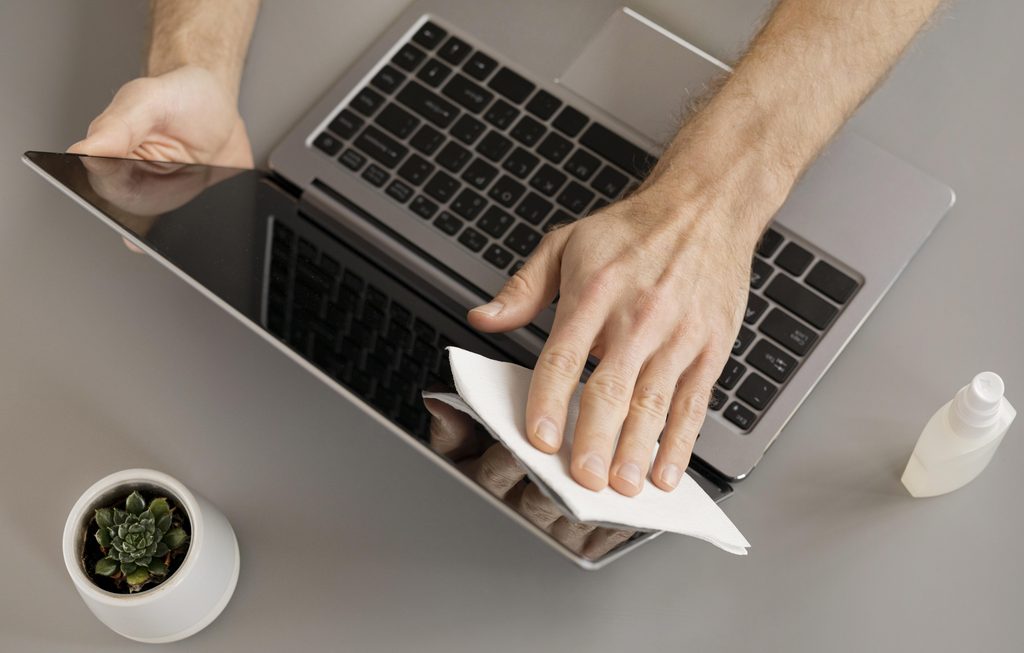
Laptop screens can collect fingerprints, dust and other marks. Use a soft, lint-free microfibre cloth designed for electronics. If a cleaning solution is required, use one that is specifically suitable for the display and follow the screen manufacturer’s recommendations.
Avoid spraying liquid directly onto the screen. Also avoid using rough paper towels or household cleaning products that may damage the screen’s coating.
7. Clean the Keyboard Regularly
Dust, crumbs and dirt can accumulate between keyboard keys. Turn the laptop off before cleaning and use an appropriate method for removing loose debris.
Don’t press aggressively on the keys or pour cleaning liquid onto the keyboard. If keys become sticky, stop responding or begin typing incorrectly, the issue may require more than simple cleaning.
8. Be Careful When Carrying Your Laptop
A laptop may look sturdy, but its screen, hinges and internal components can be damaged by drops and impacts.
When travelling:
- Use a suitable laptop bag or sleeve.
- Avoid placing heavy objects directly on the laptop.
- Don’t carry the laptop by its screen.
- Close the lid before moving it.
- Keep it secure when placing it in a vehicle or bag.
A little extra care can help prevent expensive screen or hinge repairs.
9. Don’t Put Pressure on the Screen
Laptop displays are relatively delicate. Avoid pressing the screen with your fingers or placing books and other objects on top of a closed laptop. Before closing the lid, check that nothing is sitting on the keyboard.
Even a small object left between the keyboard and display can potentially cause screen damage when the lid is closed.
10. Look After the Charging Port
Repeatedly pulling or twisting the charging cable can put unnecessary stress on the laptop’s charging port. Try to position the cable where it won’t be constantly bent or pulled.
If charging becomes intermittent or the laptop only charges when the connector is held at a particular angle, don’t ignore the problem. Continued use can make a damaged charging port worse.
11. Keep Your Operating System Updated
Software updates aren’t just about getting new features. Operating system and driver updates can include important security fixes, bug fixes and performance improvements. Keep your laptop updated through the normal update system provided by your operating system.
At the same time, avoid downloading questionable “driver updater” applications or unofficial software that claims to fix every computer problem automatically.
12. Keep Enough Free Storage Space
A nearly full storage drive can make everyday computer management more difficult and, depending on the operating system and workload, can affect performance.
Regularly review your files and remove things you no longer need. You can also move large personal files, such as old videos and photos, to suitable external or cloud storage.
However, don’t delete system files simply because you don’t recognise them. If you’re unsure what something does, leave it alone or ask a professional.
13. Protect Your Laptop From Malware
Good physical care isn’t enough if your laptop is poorly protected online.
Use reputable security software and keep your operating system and applications updated.
Be careful when:
- Opening unexpected email attachments
- Downloading software from unknown websites
- Clicking suspicious links
- Installing pirated software
- Entering passwords on unfamiliar websites
If your laptop suddenly becomes extremely slow, displays unusual pop-ups or behaves strangely, malware should be one of the possibilities considered.
14. Back Up Important Files
A laptop can fail unexpectedly.
Hard drive or SSD problems, liquid damage, accidental deletion, malware and other issues can result in data loss.
Don’t rely on your laptop as the only location for important files.
Keep important documents, photos, work files and other valuable data backed up using an appropriate external or cloud-based backup system.
A backup is particularly important because repairing a laptop doesn’t always guarantee that every file can be recovered.
15. Get Problems Checked Before They Become Serious
One of the best laptop-care habits is simple: don’t ignore unusual behaviour.
If your laptop starts:
- Overheating
- Making strange fan noises
- Shutting down unexpectedly
- Showing screen problems
- Losing battery life quickly
- Charging intermittently
- Running unusually slowly
- Showing repeated errors
it’s better to investigate the problem early. A small issue can sometimes be easier and less expensive to fix before it develops into a larger hardware problem.
When Should You Get Professional Laptop Repair?
Regular care can prevent many avoidable problems, but it can’t prevent every hardware failure.
If your laptop has a damaged screen, faulty charging port, overheating problem, battery issue, broken hinge, keyboard fault or another hardware problem, professional diagnosis can help identify the correct solution.
At TechLab+, we provide laptop and computer repair in Ealing, helping customers with a wide range of laptop and computer problems.
Our team also serves customers from nearby areas including Brentford, Hanwell, Boston Manor and Pitshanger.
Rather than replacing a laptop because of one problem, it’s worth having the device assessed first. In many situations, repairing or replacing a specific component can extend the useful life of the laptop.