
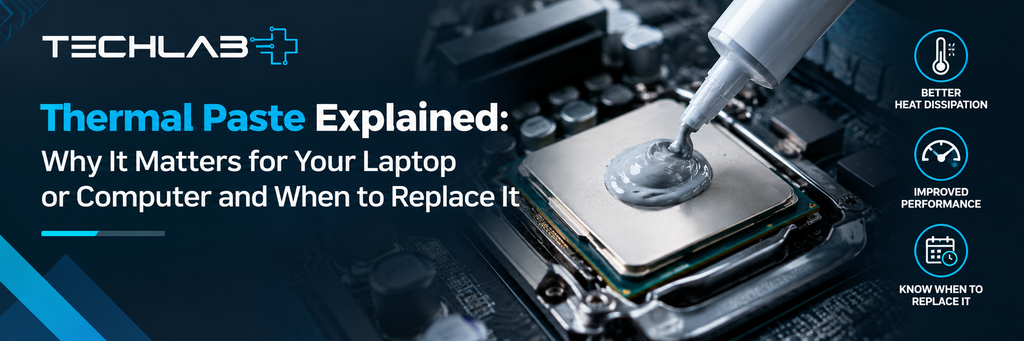
If your laptop or desktop computer has started running hotter than usual, the fans are constantly making noise, or performance drops when you are doing demanding tasks, there could be a problem with the cooling system.
One part that is often overlooked is thermal paste.
Thermal paste plays an important role in helping heat move away from your computer’s processor and into the heatsink. Over time, thermal paste can dry out or lose some of its effectiveness, which may contribute to higher temperatures.
But does every overheating laptop need new thermal paste? Not necessarily.
Overheating can also be caused by dust, blocked vents, faulty fans, poor airflow, software running heavily in the background, or other hardware problems.
In this guide, we’ll explain what thermal paste does, why it can become less effective, the warning signs to look for, and when professional thermal paste replacement may be worth considering.
What Is Thermal Paste?
Thermal paste is a heat-conductive compound used between a processor and its heatsink.
A CPU generates a significant amount of heat while it is working. The heatsink is designed to absorb that heat and move it away from the processor so the cooling system can remove it.
Although the surfaces of the processor and heatsink look smooth, they contain extremely small imperfections that can create tiny air gaps between them.
Thermal paste fills these microscopic gaps and helps create better contact between the two surfaces.
A simplified cooling process looks like this:
CPU → Thermal Paste → Heatsink → Fan → Heat Dispersed
Without an effective thermal interface, transferring heat from the processor to the heatsink becomes less efficient.
Why Does Thermal Paste Dry Out?
Thermal paste does not normally fail overnight.
It can gradually change over time because it is repeatedly exposed to heating and cooling cycles.
Every time you use your computer, the processor temperature rises and falls. After years of use, the thermal compound may become drier or less effective.
The rate at which this happens depends on several factors, including:
- How heavily the computer is used
- How hot the processor normally runs
- The quality of the original thermal compound
- The design of the laptop or PC
- Dust and airflow inside the device
- How old the computer is
This is why there isn’t a single replacement schedule that applies to every laptop or desktop computer.
Can Dry Thermal Paste Cause Overheating?
It can.
When thermal paste becomes degraded, heat may not transfer as effectively from the processor to the heatsink.
The cooling fan may then need to work harder to control temperatures.
You might notice:
- Louder or constantly running fans
- Higher CPU temperatures
- The laptop becoming unusually hot
- Slower performance during demanding tasks
- Performance dropping after extended use
- Unexpected shutdowns
- Thermal throttling
However, it’s important not to assume that thermal paste is automatically responsible.
For example, if your laptop is overheating because its cooling vents are blocked with dust, replacing the thermal paste alone may not solve the problem.
This is why diagnosing the cause of overheating before carrying out a repair is important.
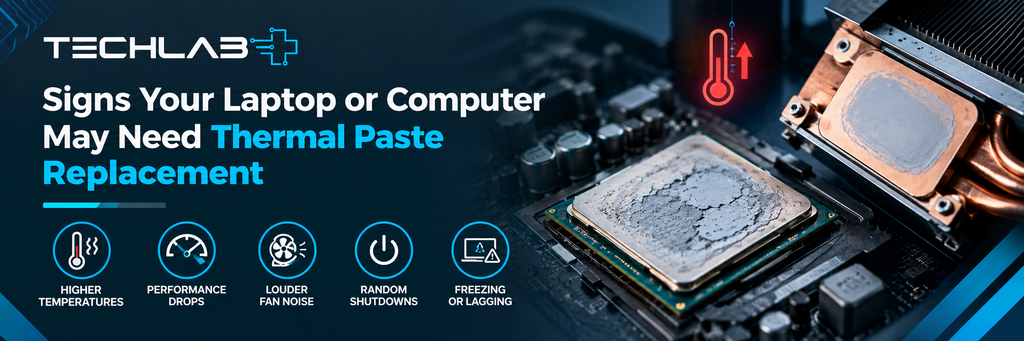
7 Signs Your Laptop or Computer May Need Thermal Paste Replacement
1. Your Fans Are Running Constantly
Fans are designed to increase speed when your computer becomes warm.
If you are performing demanding tasks such as gaming or video editing, hearing the fans is completely normal.
However, if the fans are constantly running loudly while you’re doing simple tasks such as browsing websites, writing documents or watching videos, the cooling system may need to be checked.
2. Your Laptop Is Getting Hotter Than Before
Computers naturally produce heat.
But if your laptop’s keyboard, palm rest or underside feels significantly hotter than it used to, something may have changed with the cooling system. Thermal paste could be one possible cause.
3. Your Computer Slows Down During Heavy Tasks
Modern processors have built-in thermal protection.
When temperatures become too high, the processor may reduce its speed to control heat. This is commonly known as thermal throttling.
You might notice that your computer starts working normally but becomes slower after several minutes of gaming, video editing or other demanding work.
4. Your Computer Shuts Down Unexpectedly
A computer may shut itself down if temperatures become dangerously high.
This is a safety feature designed to protect the hardware.
If your laptop or PC repeatedly shuts down while under load, don’t simply keep restarting it. The cooling system should be investigated.
5. The Computer Is Several Years Old
Age alone doesn’t mean thermal paste needs replacing.
However, if an older computer is also experiencing increased temperatures, loud fans or reduced performance, a cooling inspection could be useful.
A technician can determine whether thermal paste, dust or another component is responsible.
6. Cleaning the Vents Hasn’t Helped
If you’ve already cleaned the external vents and improved airflow but your computer is still overheating, there may be another reason behind the problem.
The internal cooling system, fan, heatsink and thermal interface may need professional inspection.
7. Temperatures Increase Quickly Under Load
If temperatures rise unusually quickly whenever you open demanding applications, this can be another sign that the cooling system isn’t working as efficiently as it should.
Again, this doesn’t automatically mean the thermal paste is the problem, but it’s worth investigating.
How Thermal Paste Replacement Works
Replacing thermal paste involves more than simply adding new compound. A technician normally needs to access the processor and cooling assembly.
The general process involves:
- Safely powering down and opening the computer
- Accessing the heatsink and cooling assembly
- Removing the heatsink carefully
- Cleaning away the old thermal compound
- Checking the cooling components
- Applying an appropriate amount of new thermal paste
- Reinstalling the heatsink correctly
- Reassembling the device
- Testing temperatures and performance
The exact process varies considerably between laptops and desktop computers.
Some laptops are particularly compact, making access to the CPU and cooling system more complicated.
Laptop Thermal Paste Replacement vs Desktop PC
The basic principle is the same, but the repair can be quite different.
Laptop
Laptop components are tightly packed together.
The CPU and GPU may share heat pipes, heatsinks and compact fans. Accessing the cooling system can require substantial disassembly. For this reason, attempting a laptop thermal paste replacement without the right experience can result in damaged connectors, cables or other components.
Desktop PC
Desktop computers generally provide easier access to the processor and cooler. However, care is still needed when removing the heatsink and applying new thermal compound. The cooler must be installed correctly and have proper contact with the processor.
Does Thermal Paste Need to Be Replaced Every Year?
No, not necessarily.
This is one of the most common misunderstandings about thermal paste.
There is no universal rule saying every laptop or computer needs thermal paste replaced every 12 months.
Some devices can run well for several years without needing replacement.
Instead of replacing thermal paste based only on age, look at the condition and symptoms of the computer.
If your device is running normally, temperatures are under control and the cooling system is working properly, there may be no reason to replace it simply because the computer is older.
Can You Replace Thermal Paste Yourself?
For experienced PC users, replacing thermal paste on a desktop can be a manageable maintenance job.
However, laptops can be considerably more difficult.
You may need to remove internal covers, batteries, cooling assemblies and delicate connectors before reaching the processor.
There is also a risk of:
- Damaging ribbon cables
- Stripping screws
- Damaging connectors
- Applying too much or too little thermal compound
- Installing the heatsink incorrectly
- Damaging other internal components
If you’re not confident working inside your computer, professional servicing is usually the safer option.
Thermal Paste Isn’t Always the Problem
This is particularly important when diagnosing overheating.
Before replacing thermal paste, other possible causes should be considered.
Dust Build-Up
Dust can restrict airflow and cover heatsinks and fans.
Faulty Cooling Fan
A damaged or failing fan can prevent hot air from being removed effectively.
Blocked Air Vents
Using a laptop on a soft surface can restrict airflow.
Heavy Background Processes
A program running continuously in the background can keep the CPU under load.
Poor PC Airflow
Desktop computers can also suffer from poor airflow if fans aren’t positioned correctly or the case is packed with dust.
Other Hardware Problems
Overheating can sometimes be linked to other hardware faults that require a professional diagnosis.
This is why simply replacing thermal paste isn’t always the answer.
How to Reduce Overheating
There are several simple things you can do to help your computer stay cooler.
Keep Vents Clear
Make sure your laptop’s ventilation openings aren’t blocked.
Use Your Laptop on a Hard Surface
Avoid using it on beds, blankets or sofas where ventilation can become restricted.
Keep Your Computer Clean
Dust can gradually build up inside laptops and desktop PCs.
Don’t Ignore Unusual Fan Noise
Grinding, rattling or unusual fan behaviour can indicate a cooling problem.
Monitor Performance
If your computer becomes extremely slow whenever you run demanding applications, check whether excessive heat or high CPU usage could be involved.
When Should You Get Professional Help?
You should consider getting your laptop or computer checked if:
- It is overheating regularly
- Fans are constantly running loudly
- Performance drops when the device gets hot
- The computer shuts down unexpectedly
- Temperatures seem much higher than before
- Cleaning the vents hasn’t helped
- The device is several years old and showing cooling problems
A professional diagnosis can determine whether the solution is thermal paste replacement, internal cleaning, fan repair, improved airflow or another hardware repair.
Thermal Paste & Computer Cooling Services at TechLab+
If your laptop or desktop computer is overheating, TechLab+ in Ealing can help identify the cause.
Rather than automatically replacing thermal paste, the issue can be assessed to determine whether the thermal compound, fan, dust build-up, airflow or another component is responsible.
TechLab+ provides computer and laptop repair services for customers in Ealing and nearby areas including Brentford, Hanwell and Boston Manor.
If your computer has become unusually hot, noisy or slow, getting it checked early can help identify the problem before it develops into a more serious hardware issue.
There isn’t one symptom that confirms it. Increased temperatures, loud fans, thermal throttling and overheating can indicate a cooling problem, but professional diagnosis can determine whether thermal paste is actually responsible.
Degraded thermal paste can contribute to overheating by reducing efficient heat transfer between the processor and heatsink. However, dust, fans and airflow should also be checked.
There is no fixed replacement schedule for every computer. It depends on the device, usage and condition of the cooling system.
If degraded thermal paste is contributing to overheating, replacing it can improve heat transfer. A technician should assess the computer first to determine whether it is actually required.
Yes. TechLab+ can assess overheating and cooling-related problems and advise whether the device needs cleaning, thermal paste replacement, fan work or another repair.
Final Thoughts
Thermal paste may be a small part of your laptop or desktop computer, but it plays an important role in transferring heat away from the processor.
When it becomes degraded, it can contribute to higher temperatures and cooling problems. However, overheating can have many different causes, so replacing thermal paste should not automatically be the first solution.
If your laptop or computer is running hotter, becoming noisy or slowing down during demanding tasks, it’s worth having the cooling system checked.
For professional laptop and computer repair in Ealing, Brentford, Hanwell and surrounding areas, TechLab+ can help diagnose the problem and recommend the right solution.