
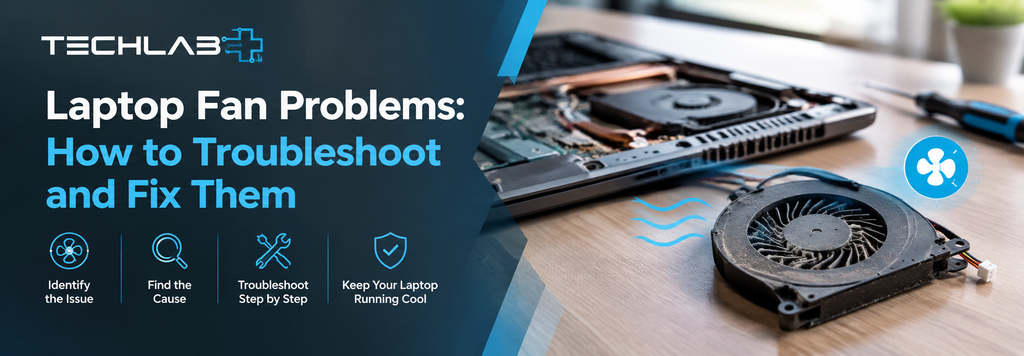
Your laptop fan plays an important role in keeping the internal components cool. Whenever the processor or graphics chip gets hot, the fan helps move heat away and pushes warm air out through the vents.
If your laptop fan is constantly loud, not spinning, making unusual noises, or your laptop is overheating, there could be an issue that needs attention. Sometimes the problem is simple, such as dust blocking the vents. In other cases, the fan itself may need cleaning or replacement.
In this guide, we’ll look at the most common laptop fan problems, what you can safely check yourself, and when it is better to get professional laptop repair.
Why Does a Laptop Fan Get Loud?
It is normal for a laptop fan to become louder when the computer is working hard. For example, the fan may speed up while you are:
- Playing games
- Editing videos or photos
- Running demanding software
- Installing large updates
- Using several applications at once
- Running tasks that put heavy load on the processor
However, if the fan is loud even when you are doing very little, it may indicate an underlying problem.
Common causes include dust buildup, blocked air vents, high CPU usage, overheating, old thermal paste, or a worn fan bearing.
Common Signs of a Laptop Fan Problem
A faulty or struggling fan can show itself in several ways. Watch out for these signs:
1. The Fan Is Constantly Running
If your fan runs at high speed for most of the day, check whether your laptop is performing demanding tasks in the background.
Open your Task Manager on Windows and look at CPU usage. An application using a large amount of CPU power could be making the laptop warmer and forcing the fan to work harder.
2. The Fan Is Making Strange Noises
A healthy fan usually produces a consistent airflow sound. Clicking, rattling, grinding or buzzing noises can indicate a mechanical problem.
This can happen when the fan bearing becomes worn or when something is interfering with the fan blades.
3. The Laptop Fan Isn’t Spinning
If your laptop becomes very hot but you cannot hear or feel any fan activity, there could be a fan, power, sensor or motherboard-related problem.
Some modern laptops intentionally stop the fan during light workloads, so a fan not spinning isn’t automatically a fault. The concern is when the laptop becomes unusually hot or starts shutting down.
4. Your Laptop Is Overheating
Unexpected shutdowns, performance drops, very hot surfaces and sudden fan-speed increases can all be signs of excessive heat.
Overheating shouldn’t be ignored because prolonged high temperatures can affect the performance and reliability of internal components.
Check for Dust and Blocked Vents
One of the simplest causes of laptop overheating is restricted airflow.
Over time, dust, hair and other particles can collect around the fan and ventilation system. This prevents cool air from moving through the laptop properly.
Check the ventilation openings on your laptop and make sure they aren’t blocked by:
- Dust
- Fabric
- Cushions
- Blankets
- Other objects
Always use your laptop on a firm, flat surface where the ventilation openings can breathe properly.
If dust has built up inside the laptop, internal cleaning may be required. Opening a laptop isn’t always straightforward, especially on thinner modern models, so avoid forcing the casing open if you are unsure how it is assembled.
Check Which Apps Are Using Your CPU
Sometimes there is nothing wrong with the fan at all. The laptop may simply be working harder than expected.
On Windows, open Task Manager and check CPU usage. You may find that a browser tab, application, update process or another background task is consuming significant resources.
Close applications you don’t need and see whether the fan speed reduces.
If the fan becomes quieter afterwards, high system activity may have been the main reason for the noise.
Keep Your Laptop’s Software Updated
Operating system and driver updates can sometimes improve system performance, power management and temperature control.
Make sure your operating system and important device drivers are reasonably up to date.
However, don’t assume that every fan problem can be fixed with software. If the fan is physically damaged, clogged or failing mechanically, an update won’t solve the problem.
Could Thermal Paste Be the Problem?
Thermal paste sits between certain heat-producing components and their heatsink. Its job is to help transfer heat efficiently from the component to the cooling system.
Over time, thermal paste can degrade. When this happens, heat transfer may become less effective, potentially contributing to higher temperatures and increased fan activity.
However, thermal paste is only one possible cause of overheating. Dust, blocked vents, a failing fan, high CPU usage and other cooling-system issues can also contribute.
If your laptop is several years old and has started running noticeably hotter, a professional inspection can help determine whether thermal paste replacement is actually needed.
Can You Fix a Laptop Fan Yourself?
Some basic troubleshooting is safe for most users.
You can:
- Keep the vents clear
- Use the laptop on a hard, flat surface
- Check CPU usage
- Close unnecessary applications
- Keep software updated
- Monitor whether the laptop is overheating
Internal cleaning or fan replacement is different. Laptop designs vary considerably, and accessing the fan may require removing the back cover, battery connections or other components. Some models also have delicate cables and connectors. If you’re not comfortable working inside your laptop, professional servicing is usually the safer option.
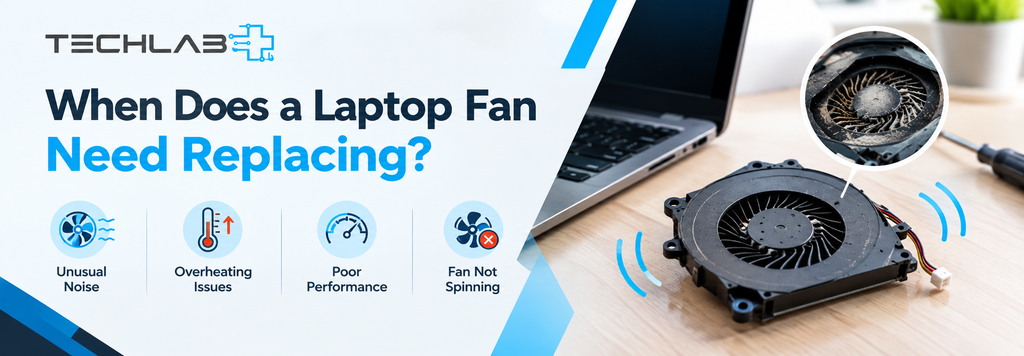
When Does a Laptop Fan Need Replacing?
Cleaning won’t always solve a noisy or faulty fan.
A replacement may be necessary if the fan:
- Makes persistent grinding or rattling noises
- Doesn’t spin when it should
- Has damaged blades
- Has a worn bearing
- Stops intermittently
- Causes the laptop to overheat despite proper cleaning
The correct replacement fan depends on the exact laptop model. Using the wrong component can lead to poor cooling or compatibility problems
Don’t Ignore an Overheating Laptop
It’s tempting to ignore a noisy fan, especially if the laptop still turns on and works normally.
But if the fan is constantly running at maximum speed or the laptop is becoming extremely hot, it’s worth investigating the cause.
Continued overheating can also result in thermal throttling, where the system reduces performance to control temperatures. This can make your laptop feel unusually slow even though the hardware itself hasn’t necessarily become slower.
In more serious cases, the laptop may shut down unexpectedly to protect itself from excessive temperatures.

When Should You Get Professional Laptop Repair?
If you’ve checked the basic causes and your laptop is still overheating or the fan is making unusual noises, a professional diagnosis can save time and prevent further damage.
At TechLab+, we can inspect laptop cooling problems and help identify whether the issue is related to dust, the fan, thermal paste, airflow or another hardware problem.
Our team provides laptop and computer repair in Ealing, with customers also coming from nearby areas including Brentford, Hanwell, Boston Manor and Pitshanger.
Instead of replacing parts unnecessarily, the first step should be finding out what is actually causing the problem. Once the issue has been identified, you can make an informed decision about the repair.
Final Thoughts
A laptop fan doesn’t need to be completely silent to be healthy. Fan noise is normal when your laptop is under heavy workload.
The problem is when the fan becomes unusually loud, makes strange noises, stops working, or runs constantly alongside overheating or performance issues.
Start with simple checks such as CPU usage, ventilation and how you are positioning the laptop. If the problem continues, especially if you suspect a faulty fan or internal cooling issue, professional diagnosis is the better approach.
Taking care of a laptop’s cooling system can help it maintain stable performance and avoid unnecessary overheating problems.
High CPU usage, dust, restricted airflow, overheating, thermal paste degradation or a worn fan can all cause increased fan noise.
Some laptops stop the fan during light workloads. If the laptop is getting hot and the fan doesn’t start when temperatures rise, it may need inspection.
Yes. Dust can restrict airflow and interfere with the fan, causing it to work harder and potentially become noisy.
Not necessarily. Thermal paste can contribute to overheating when it has degraded, but the cooling system, fan, vents and software workload should also be checked
If cleaning doesn’t resolve persistent noise, the fan isn’t operating correctly, or the laptop continues overheating because of a failing fan, replacement may be required.