
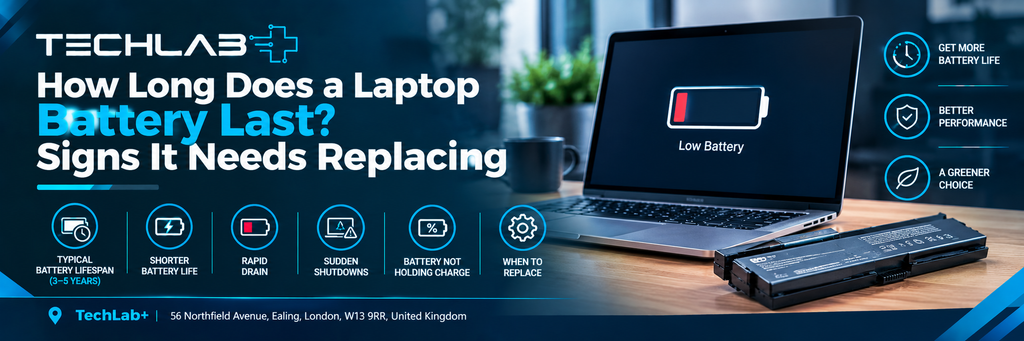
A laptop battery doesn’t last forever. Whether you use a laptop for work, studying, browsing, gaming or creative tasks, its battery gradually loses capacity as it gets older.
A laptop that once lasted most of the working day might eventually need charging after only a few hours. This doesn’t necessarily mean the laptop itself needs replacing. In many cases, the battery is simply reaching the end of its useful life and can be replaced.
But how long should a laptop battery actually last? What causes battery health to decline, and how can you tell when it’s time for a replacement?
Let’s look at the common signs and what you can do to get more life from your laptop battery.
How Long Does a Laptop Battery Usually Last?
There are two different things to consider when talking about laptop battery life:
Battery runtime: How many hours the laptop can operate on a single charge.
Battery lifespan: How long the battery remains useful before its capacity drops significantly.
These aren’t the same thing.
A laptop battery may provide several hours of use when new but gradually lose capacity over the years. The actual lifespan varies depending on the laptop, battery design, workload, temperature and charging habits.
For many users, a laptop battery can remain useful for several years, but there is no single replacement date that applies to every laptop.
A laptop used mainly for emails, documents and web browsing may experience less battery wear than one regularly used for gaming, video editing or other demanding workloads.
How Many Hours Should a Laptop Battery Last?
There’s no universal number of hours a laptop should last. Battery runtime depends heavily on the hardware and what you’re doing.
For example, a laptop may use considerably more power when you’re:
- Playing games
- Editing videos
- Using demanding professional software
- Running multiple external displays
- Streaming high-resolution content
- Using maximum screen brightness
- Running several applications at the same time
On the other hand, simple tasks such as writing documents, browsing websites or reading emails generally require less power.
This means comparing your laptop’s battery life with another model isn’t always useful. A powerful gaming laptop and a lightweight office laptop are designed for very different workloads.
What Affects Laptop Battery Lifespan?
Several factors can influence how quickly a laptop battery loses capacity.
1. Charging and Battery Cycles
Modern laptops generally use lithium-ion or lithium-polymer batteries.
These batteries gradually lose some of their ability to hold charge as they go through charging and discharging cycles.
A cycle doesn’t necessarily mean plugging your laptop in once.
For example, if you use approximately 50% of the battery one day and another 50% the next day, that is roughly equivalent to one full cycle.
As the battery accumulates more cycles and ages, its maximum capacity can gradually decrease.
2. Heat
Heat can have a significant effect on battery ageing.
Demanding workloads such as gaming, video editing and rendering can increase internal temperatures. Poor ventilation, blocked cooling vents and dust buildup can make the situation worse.
Using a laptop on a bed, sofa or other soft surface can also restrict airflow.
To help reduce unnecessary heat:
- Use the laptop on a hard, flat surface.
- Keep ventilation openings clear.
- Clean dust from the cooling system when necessary.
- Avoid leaving the laptop in very hot environments.
- Make sure the cooling fan is working properly.
Good temperature management benefits both the battery and other internal components.
3. How You Use the Laptop
A laptop that spends most of its time connected to a charger may behave differently from one that is regularly used on battery power.
Modern laptops have charging and power-management systems designed to manage this more effectively than older devices. Some also provide battery protection or charge-limit features.
If your laptop has a manufacturer’s battery-care setting that limits maximum charging for prolonged plugged-in use, it may be useful when the laptop spends most of its time connected to mains power.
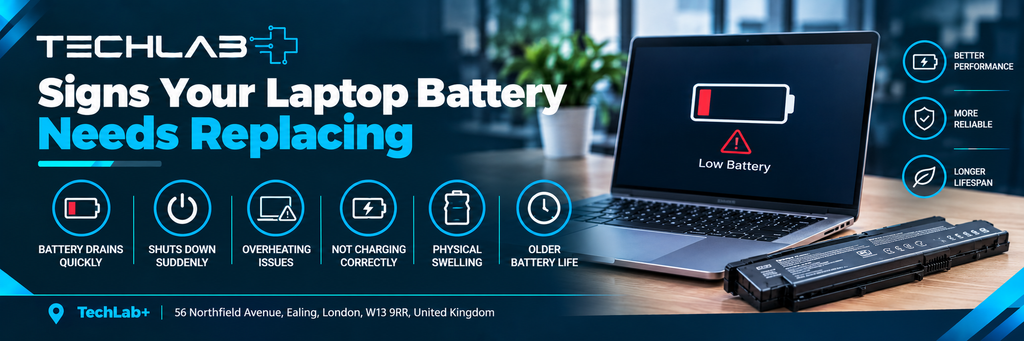
Signs Your Laptop Battery Needs Replacing
Battery degradation usually happens gradually, but there are several signs that can indicate your battery is approaching the end of its useful life.
Battery Drains Much Faster Than It Used To
This is one of the most obvious signs.
Perhaps your laptop previously lasted six or seven hours but now needs charging after only two or three hours during similar usage.
Some reduction in runtime is normal as a battery ages. However, a major change in battery life can indicate significant capacity loss.
Your Laptop Shuts Down Unexpectedly
Does your laptop suddenly turn off even though the battery indicator still shows a reasonable percentage?
An ageing battery may struggle to deliver stable power when the laptop is under load.
For example, the battery might show 30% remaining but the laptop shuts down when you open a demanding application.
If this happens repeatedly, the battery should be checked.
Battery Percentage Drops Suddenly
Another warning sign is an unusual jump in the battery percentage.
For example, the laptop may show 60%, then quickly drop to 40% or lower without an obvious reason.
An inaccurate battery reading can have several causes, so it doesn’t automatically mean the battery needs replacement. However, repeated unusual changes are worth investigating.
The Battery Isn’t Charging Properly
Charging problems can be caused by either the battery or another part of the charging system.
You may notice:
- The laptop refuses to charge.
- The battery stops charging at a particular percentage.
- Charging repeatedly starts and stops.
- The battery takes unusually long to charge.
- The laptop only works properly when connected to the charger.
Before replacing the battery, it’s important to check the charger, charging port and power-management system as well.
Your Laptop Only Works When Plugged In
If your laptop switches off immediately after removing the charger, the battery may have reached the end of its usable life.
However, other hardware or charging issues can produce similar symptoms, so professional diagnosis can help confirm the cause.
A Swollen Laptop Battery Is a Serious Warning
One battery problem should never be ignored: physical swelling.
A damaged lithium battery can expand and cause the laptop’s casing, keyboard or trackpad to lift or become distorted.
If you notice:
- A raised keyboard
- A trackpad that no longer sits correctly
- A gap appearing in the laptop casing
- Unusual swelling or deformation
stop using the laptop and seek professional assistance.
Do not attempt to puncture, squeeze or remove a visibly swollen battery yourself.
A swollen battery should be handled appropriately because damaged lithium batteries can present a safety risk.
How to Check Your Laptop Battery Health
If you’re experiencing shorter battery life, checking the battery’s condition can provide useful information.
On Windows laptops, you can generate a battery report using the built-in Windows battery reporting tools. This can provide information such as the battery’s design capacity and its current full-charge capacity.
Comparing these figures can give you an indication of how much capacity the battery has lost.
For example, if a battery originally had a design capacity of 50,000 mWh but its current full-charge capacity is significantly lower, the battery has experienced substantial capacity loss.
The exact numbers should be considered alongside real-world symptoms rather than used as the only reason to replace a battery.
How to Make Your Laptop Battery Last Longer
You cannot prevent battery ageing completely, but good habits can help reduce unnecessary wear.
Keep Your Laptop Cool
Avoid blocking the ventilation openings and don’t regularly use the laptop on soft surfaces such as beds or cushions.
If your laptop frequently becomes very hot, investigate the cooling system rather than simply accepting high temperatures as normal.
Avoid Repeatedly Draining the Battery Completely
Modern lithium batteries don’t need to be completely discharged before charging.
Regularly allowing the battery to reach extremely low levels isn’t necessary for normal use.
Use Battery-Saving Features
Windows and other operating systems provide power-saving settings that can reduce energy consumption.
Lowering screen brightness, reducing unnecessary background activity and using appropriate power modes can help extend runtime during everyday use.
Don’t Ignore Overheating
If your laptop fan is constantly running loudly or the laptop becomes unusually hot, there may be a cooling issue.
Dust buildup, blocked vents, a faulty fan or degraded thermal paste can all contribute to higher temperatures.
Addressing cooling problems can help protect the laptop’s internal components and may also reduce unnecessary battery stress.
Should You Replace the Battery or the Laptop?
A poor battery doesn’t automatically mean you need a new laptop.
If the laptop still performs well for your everyday needs, battery replacement can be a practical alternative to replacing the entire device.
A battery replacement may make sense when:
- The laptop otherwise works normally.
- The screen and keyboard are in good condition.
- Performance is still suitable for your needs.
- The battery is clearly degraded.
- A compatible replacement battery is available.
On the other hand, if the laptop has multiple major hardware problems or no longer meets your performance requirements, replacing the device may be worth considering.
The important thing is to identify the actual problem before spending money on a replacement.
When Should You Get Professional Laptop Repair?
If your laptop battery is draining unusually quickly, isn’t charging correctly, or is causing unexpected shutdowns, professional diagnosis can help determine whether the battery is actually the problem.
At TechLab+, we can inspect laptop battery and power-related issues and help identify whether the problem is related to the battery, charger, charging port, overheating or another hardware issue.
TechLab+ provides laptop and computer repair in Ealing, serving customers from areas including Brentford, Hanwell, Boston Manor, Pitshanger and nearby West London locations.
If a battery replacement is appropriate for your laptop, the correct compatible battery should be identified for the specific model rather than simply choosing a battery based on appearance.
Final Thoughts
Laptop batteries naturally lose capacity over time. Shorter runtime after several years doesn’t necessarily mean your laptop is failing.
However, rapid battery drain, unexpected shutdowns, charging problems, sudden percentage drops or physical swelling can indicate that the battery needs attention.
Before replacing your entire laptop, check its battery health and consider whether a battery replacement could restore the portability you need.
And if you’re unsure whether the battery, charger, charging port or another component is responsible, getting the laptop properly diagnosed can help you avoid replacing the wrong part.