
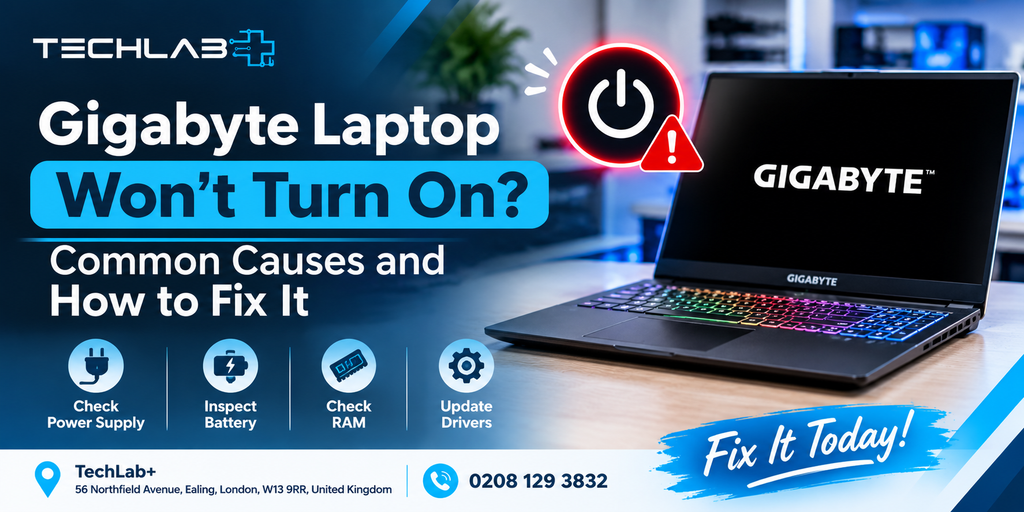
Pressing the power button on your Gigabyte laptop and getting no response can be frustrating, especially when you need it for work, gaming or everyday tasks. Sometimes, the cause is something simple, such as a drained battery or a loose charger. In other cases, the problem may involve the display, charging circuit, battery or internal hardware.
The good news is that you can perform several basic checks before arranging a repair. The key is to identify whether your laptop is receiving power, starting up without displaying an image, or failing to load Windows.
In this guide, we explain how to troubleshoot a Gigabyte laptop that will not turn on, what different warning signs might mean, and when to seek professional laptop repair.
Why Is My Gigabyte Laptop Not Turning On?
A Gigabyte laptop may fail to start for several reasons, including:
- A discharged or faulty battery
- A damaged charger or charging port
- A faulty power button
- A frozen power state
- A black screen caused by a display or graphics problem
- A RAM or storage-related fault
- A motherboard or power circuit issue
- A failed or interrupted BIOS or firmware update
The first step is to observe what happens when you press the power button. Check whether charging lights appear, fans start spinning, keyboard lights turn on or the screen remains completely black. These clues can help narrow down the cause.
1. Check the Charger and Power Supply
If your Gigabyte laptop does not respond when you press the power button, start by checking the power supply.
What to do
- Disconnect the charger from the laptop and wall socket.
- Check the cable, power adapter and connectors for visible damage.
- Plug the charger directly into a working wall socket.
- Reconnect it securely to your laptop.
- Look for a charging indicator, if your model has one.
- Leave the laptop connected to power for around 15–30 minutes before trying again.
If possible, test with a compatible, known-working charger that meets your laptop’s power requirements. Avoid using a charger with the wrong voltage, connector or power rating. If the adapter becomes unusually hot, smells burnt or shows damaged wiring, disconnect it and stop using it.
What this tells you: If the laptop starts charging or powers on after reconnecting the charger, the issue may have been related to the power connection or a depleted battery. If there is still no response, continue with the next checks.
2. Perform a Safe Power Reset
Sometimes, a laptop can become stuck in an unresponsive power state. A power reset may help clear this condition.
How to try it
- Disconnect the charger.
- Remove USB devices, external drives, memory cards and other connected accessories.
- If your laptop has a removable battery, follow the manufacturer’s instructions to remove it safely.
- With external power disconnected, press and hold the power button for approximately 15–30 seconds.
- Reconnect the charger.
- Try turning the laptop on again.
For laptops with internal batteries, do not open the casing just to disconnect the battery. Some Gigabyte models may have model-specific reset procedures, so consult the relevant manual before attempting anything more involved. A power reset will not fix every hardware fault, but it is a useful early troubleshooting step.
3. Check Whether the Laptop Is On but the Screen Is Black
Not every laptop that appears to be off has actually failed to start. Sometimes the computer is running, but the display is not showing an image.
Look for signs such as:
- Power indicator lights are illuminated.
- The fans are running.
- The keyboard backlight turns on.
- You can hear startup sounds.
- The laptop appears to respond even though the screen stays black.
Try these checks
First, increase the screen brightness using the appropriate keyboard controls. If the laptop appears to be running, wait briefly to see whether the display responds. Next, connect a compatible external monitor or television using HDMI or another supported display connection. Select the correct input on the external display.
If an image appears on the external monitor, the problem may involve the built-in screen, display cable or related hardware. If neither display shows anything, the cause could be elsewhere in the startup process. An external monitor test is a diagnostic clue rather than a definitive diagnosis. Some internal graphics or firmware issues can affect both displays.
4. Disconnect External Devices
A connected accessory can sometimes interfere with startup or make troubleshooting more complicated.
Remove unnecessary external devices, including:
- USB storage drives
- External keyboards and mice
- USB hubs and docking stations
- Printers
- External monitors
- Other connected accessories
Leave only the charger connected and try starting the laptop again.
If it starts normally, reconnect your devices one at a time. This can help identify whether a particular accessory or connection is contributing to the issue.
5. Look for Battery or Charging Problems
A worn-out battery can cause power-related symptoms, particularly if the laptop shuts down unexpectedly, fails to hold a charge or only works while connected to its charger.
Common warning signs include:
- The laptop does not charge properly.
- The battery percentage drops unusually quickly.
- The laptop switches off without warning.
- The charging indicator behaves differently from normal.
- The laptop starts with the charger connected but shuts down when it is removed.
If the laptop powers on while connected to a suitable charger but not on battery power, the battery may need testing.
However, this behaviour does not prove the battery is faulty. The charger, charging port or internal power circuitry could also be responsible.
Safety warning: If the battery appears swollen, the case is separating, or you notice unusual heat or a chemical smell, stop using the laptop and disconnect power if it is safe to do so. Do not press on, puncture or attempt to remove a swollen battery yourself.
6. Determine Whether the Problem Is a Windows Startup Failure
Does your Gigabyte laptop show the manufacturer’s logo or a Windows loading screen before getting stuck? If so, the laptop may be receiving power correctly, but the operating system may be failing to start.
Possible causes include:
- Corrupted Windows system files
- A problematic update
- Storage drive errors
- Driver conflicts
- Incorrect boot settings
What you can try
If the laptop reaches Windows Recovery, follow the available troubleshooting options. Depending on the problem, Startup Repair or System Restore may help.
If you can access Windows, back up important files before attempting more extensive repairs.
Avoid repeatedly interrupting updates or randomly changing BIOS settings. If the laptop cannot reach recovery tools, or if you suspect a failing SSD, further diagnosis may be necessary.
Important: Do not factory-reset the laptop as your first troubleshooting step. Resetting Windows can remove applications and potentially cause data loss, depending on the option selected. Diagnose the issue and protect important files first.
7. Consider RAM or Storage Problems
A laptop that powers on but does not complete startup may have a memory, storage or other internal hardware problem.
Possible symptoms include:
- The screen remains black.
- The laptop repeatedly restarts.
- Startup freezes at the manufacturer’s logo.
- Error messages appear during boot.
- The laptop no longer detects its storage drive.
On some models, a memory or storage fault may prevent normal startup. However, these symptoms can also be caused by firmware or motherboard issues.
If your Gigabyte laptop has user-accessible memory or storage, check the official model documentation before considering any hardware work. Many modern laptops have tightly integrated components, and opening the device may damage connectors or affect warranty coverage.
If the laptop is under warranty, contact Gigabyte support before opening the casing. For suspected hardware faults, a technician can test the components and determine whether repair or replacement is appropriate.
8. What If the Laptop Stopped Working After a BIOS Update?
A laptop that stops starting after a BIOS or firmware update needs extra care.
The BIOS helps initialise the hardware before the operating system loads. If an update fails or the firmware becomes corrupted, the laptop may show a black screen or fail to complete startup.
Recommended next steps
- Connect the correct power adapter and check the manufacturer’s instructions.
- Avoid repeatedly forcing shutdowns if an update may still be in progress.
- Identify the exact Gigabyte laptop model.
- Check the official support resources for model-specific recovery instructions.
- Contact Gigabyte support or a qualified repair technician if the device remains unresponsive.
Do not download firmware intended for a different model or attempt an unverified BIOS recovery procedure. The wrong firmware or recovery method can make the problem worse.
Gigabyte provides official laptop support and repair-request resources where you can check the appropriate options for your model.
9. Check for Signs of Liquid or Physical Damage
If your Gigabyte laptop stopped working after a liquid spill, drop or impact, the issue may be more serious than a simple power problem.
Possible warning signs include:
- No charging or power indicator.
- A damaged charging port.
- Visible cracks or bent casing.
- Unusual heat or a burning smell.
- Power cutting out after an impact.
- A laptop that was exposed to liquid shortly before failing.
If liquid has entered the laptop, switch it off if it is safe to do so, disconnect the charger and do not try to power it on repeatedly. Avoid using a hairdryer or placing the laptop in rice.
Liquid damage can affect internal circuits even when the exterior looks dry. Professional inspection is recommended before applying power again.
When Should You Stop Troubleshooting and Get Professional Help?
Basic checks are useful, but some symptoms require a proper hardware diagnosis.
Consider professional laptop repair if:
- Your laptop remains completely unresponsive after basic power checks.
- The charging port or power connector appears damaged.
- The laptop gets unusually hot or produces a burning smell.
- The screen remains black despite signs that the laptop is running.
- The laptop fails to start after a BIOS update.
- Windows repeatedly fails to load.
- The device has suffered liquid or physical damage.
- You suspect a battery, motherboard, RAM or SSD fault.
A technician can check the charger, battery, charging port, internal power circuitry and other relevant components. This helps identify the actual cause before you spend money replacing parts unnecessarily.
Is It Worth Repairing a Gigabyte Laptop That Won’t Turn On?
In many cases, repairing a Gigabyte laptop can be worthwhile, but the decision depends on the fault, the laptop’s age and the cost of replacement parts.
A straightforward charger or battery issue may be less expensive to resolve than a motherboard-level fault. For an older laptop, the repair cost should be compared with the cost of a suitable replacement.
Before deciding, consider:
- The cause of the fault: Is it a power supply problem, a replaceable component or a complex motherboard issue?
- The laptop’s age and specifications: A capable gaming or work laptop may still have years of useful life remaining.
- Your data: If important files are stored on the device, ask about data preservation before authorising work.
- The repair estimate: Request a diagnosis and quote before deciding whether to proceed.
A proper assessment helps you make an informed choice instead of replacing the entire laptop unnecessarily.
Gigabyte Laptop Repair in Ealing: How TechLab+ Can Help
If your Gigabyte laptop will not turn on and the basic troubleshooting steps have not helped, TechLab+ provides computer and laptop repair services in Ealing, London.
Located at 56 Northfield Avenue, Ealing, London, W13 9RR, TechLab+ helps customers with a range of computer problems, including power issues, hardware faults, operating system problems and laptop performance concerns.
The team can assess your symptoms and advise on the appropriate next steps. Whether your laptop has a charging problem, a black screen or a suspected internal hardware fault, an accurate diagnosis can help establish the repair options.
TechLab+ also serves customers from nearby areas, including Brentford, Hanwell, Boston Manor and Pitshanger.
If your laptop contains important work files, photographs or other data, explain this before the repair begins so data preservation can be considered during diagnosis.
Need help with a laptop that will not start?
Contact TechLab+ to discuss your issue or arrange a repair assessment.
- Address: 56 Northfield Avenue, Ealing, London, W13 9RR
- Phone: 0208 129 3832
- Email: info@techlab.plus
- Website: https://techlab.plus/book-repair/
Final Thoughts
When a Gigabyte laptop will not turn on, start with the basics: check the charger, inspect the power connection, disconnect external accessories and try a safe power reset. If the laptop appears to run but the screen stays black, test with an external display if possible.
If these steps do not help, the cause may involve the battery, charging port, display, storage, firmware or motherboard. Avoid opening the laptop or attempting complex repairs without the appropriate knowledge and tools.
For help diagnosing laptop power and startup problems, TechLab+ in Ealing can assess the issue and explain the available repair options before you decide what to do next.
Possible causes include a faulty charger, damaged charging port, depleted or failed battery, frozen power state or internal hardware problem. Check the power connection and try a safe power reset first. If there is still no response, arrange a diagnosis.
Disconnect the charger and external accessories, then hold the power button for around 15–30 seconds. Reconnect the charger and try turning it on. This may clear a frozen power state, but the correct procedure can vary by model.
The laptop may be starting without displaying an image. Possible causes include a display problem, graphics fault, firmware issue or incomplete startup. Try connecting an external monitor and observe whether the fans and keyboard lights respond.
Yes. A faulty or deeply discharged battery can contribute to power problems. However, a damaged charger, charging port or internal power circuit can cause similar symptoms. Testing is needed to confirm the cause.
TechLab+ provides computer and laptop repair services at 56 Northfield Avenue, Ealing, London, W13 9RR. You can contact the team on 0208 129 3832 or use the online repair booking page to discuss your issue.TechLab+ provides computer and laptop repair services at 56 Northfield Avenue, Ealing, London, W13 9RR. You can contact the team on 0208 129 3832 or use the online repair booking page to discuss your issue.