
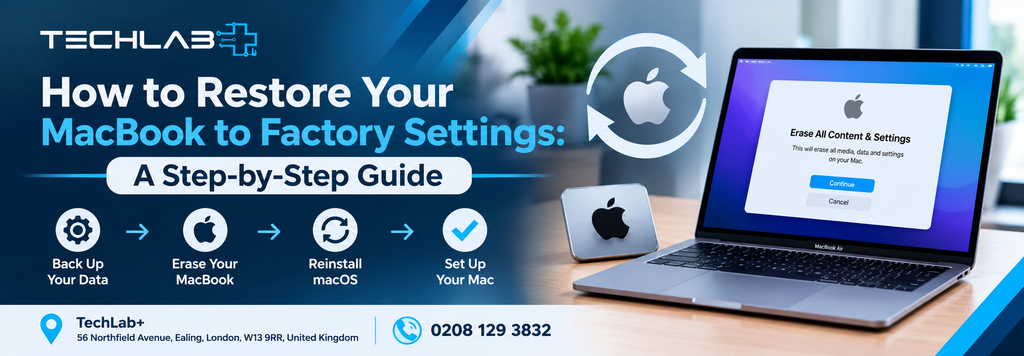
Is your MacBook running slowly, experiencing persistent software problems or getting ready for a new owner? Restoring it to factory settings can help you start fresh by removing personal data, installed apps and customised settings.
However, resetting a MacBook is not something you should do without preparation. The process can permanently erase your files, photos, documents and other important information if you have not backed them up.
In this guide, we explain how to restore a MacBook to factory settings, including the steps for newer Apple silicon models and older Intel-based MacBooks. We also cover common problems you might encounter and when professional MacBook repair may be the better option.
What Does Restoring a MacBook to Factory Settings Mean?
Restoring a MacBook to factory settings means erasing its contents and returning the software to a clean state. Depending on your Mac model and the method you use, this may involve removing personal files, applications, accounts and system settings before reinstalling macOS.
A factory reset can be useful when:
- You are selling or giving away your MacBook.
- Your MacBook has persistent software problems.
- You want to remove personal information before transferring ownership.
- You are preparing a Mac for a fresh setup.
- Troubleshooting has not resolved recurring software issues.
Important: A factory reset is not a guaranteed fix for every MacBook problem. If your MacBook is overheating, shutting down unexpectedly, suffering from liquid damage or experiencing hardware failures, resetting it may not resolve the underlying issue.
Before You Reset Your MacBook: Important Things to Do
Before erasing your MacBook, take a few minutes to prepare. These steps can help prevent data loss and make the setup process easier.
1. Back Up Your Important Files
A factory reset can permanently delete data stored on your MacBook. Create a backup before proceeding.
You can use Apple’s Time Machine feature with an external storage drive to back up your files, applications and other supported data. Alternatively, copy important documents, photos and work files to secure external storage or a suitable cloud service.
Check that your essential files are accessible from your backup before continuing.
2. Make Sure You Know Your Apple Account Details
You may need your Apple Account credentials when setting up your MacBook again. If you are selling the device, make sure Activation Lock is properly removed so the next owner can activate it.
For supported Macs, the built-in erase process handles several account and security steps automatically. Older models may require you to sign out of services and disable Find My manually.
3. Connect Your MacBook to Power
Keep your MacBook connected to its charger during the reset and macOS installation process. An unexpected shutdown during installation can interrupt the process.
4. Check Your macOS Version and Mac Model
The available reset options depend on your MacBook model and the version of macOS installed.
Newer Macs generally offer a simpler built-in option called Erase All Content and Settings. Older Macs may require you to use macOS Recovery and Disk Utility.
Method 1: Restore a MacBook Using Erase All Content and Settings
This is usually the easiest method for supported MacBook models.
The feature is available on Macs with Apple silicon or an Apple T2 Security Chip running macOS Monterey 12 or later.
Step 1: Open System Settings
On macOS Ventura or later:
- Click the Apple menu in the top-left corner.
- Open System Settings.
- Select General.
- Click Transfer or Reset.
- Choose Erase All Content and Settings.
On macOS Monterey, open System Preferences from the Apple menu and look for Erase All Content and Settings in the menu bar.
If you cannot find this option, your MacBook may not support the feature. You can try the Recovery method described below.
Step 2: Enter Your Administrator Password
Your MacBook may ask you to enter the administrator password to continue. Follow the on-screen instructions.
Read the confirmation screens carefully so you understand which data and settings will be removed.
Step 3: Review the Erasure Details
The MacBook will explain what will happen when you proceed. Depending on your model and configuration, this process can remove personal data, applications, settings and account information.
If you have not backed up your files, stop here and create a backup first.
Step 4: Confirm the Reset
Confirm that you want to erase your MacBook. You may be asked to sign out of your Apple Account or complete additional security steps.
Your MacBook will restart and begin the erasure process. Keep it connected to power and follow any instructions displayed on the screen.
Step 5: Set Up Your MacBook Again
After the process finishes, your MacBook may display the initial setup screen.
If you are keeping the device, follow the instructions to choose your language, connect to Wi-Fi, sign in and restore your data if needed.
If you are selling or giving away the MacBook, leave it at the initial setup screen rather than creating a new user account. This allows the new owner to complete the setup themselves.
Method 2: Factory Reset an Older Intel MacBook Using macOS Recovery
If your MacBook does not support Erase All Content and Settings, you may need to erase the startup disk through macOS Recovery and reinstall macOS.
Warning: The following steps erase the selected disk. Make sure your backup is complete before proceeding.
Step 1: Start macOS Recovery
The startup method depends on your MacBook.
For an Intel-based MacBook:
- Shut down your MacBook.
- Turn it on and immediately press and hold Command (⌘) + R.
- Release the keys when the Apple logo or a startup screen appears.
For an Apple silicon MacBook:
- Shut down your MacBook.
- Press and hold the power button until the startup options appear.
- Select Options.
- Click Continue.
You may be asked to select a user and enter an administrator password.
Step 2: Open Disk Utility
Once macOS Recovery loads, select Disk Utility and click Continue. Disk Utility allows you to view and manage the storage devices connected to your MacBook.
Step 3: Select the Correct Startup Disk
Find your startup disk, commonly named Macintosh HD. Follow Apple’s instructions for your particular macOS version and disk layout. On supported configurations, you may see an option to erase the volume group. On other configurations, you may need to erase the appropriate startup volume using the recommended format.
Be careful: Do not erase an external drive or another storage device by mistake. If you are unsure which disk or volume to select, stop and seek professional help.
Step 4: Erase the Startup Disk
Select the correct disk or volume and use the available Erase option. Follow the prompts to confirm the action and choose the format recommended for your Mac. Once the process is complete, exit Disk Utility to return to the macOS Recovery utilities window.
Step 5: Reinstall macOS
Select Reinstall macOS and follow the on-screen instructions.
Choose the appropriate startup disk when prompted. Your MacBook may need an internet connection to download the operating system, and installation time will depend on your model, connection and system condition. Keep the MacBook connected to power until installation is complete. If Recovery cannot find a suitable disk, displays an installation error or repeatedly restarts, do not keep erasing different volumes at random. The issue may require further diagnosis.
What Should You Do If Your MacBook Will Not Reset?
Sometimes, a factory reset does not go as planned. The solution depends on the error and your MacBook model.
MacBook Does Not Enter Recovery Mode
Try the correct startup procedure for your model. Intel and Apple silicon Macs use different methods.
If Recovery still does not open, check Apple’s official support instructions for your specific MacBook. A keyboard issue, startup problem or firmware-related fault may require additional troubleshooting.
Erase All Content and Settings Is Missing
This option is not available on every MacBook. Check whether your Mac has Apple silicon or the Apple T2 Security Chip and whether it is running a compatible version of macOS.
If the feature is unsupported, macOS Recovery may be the appropriate alternative.
macOS Installation Gets Stuck
An interrupted internet connection, insufficient installation resources or a software issue can prevent macOS from installing correctly.
Keep the device connected to power, check your internet connection and follow Apple’s recommended troubleshooting steps. If the MacBook repeatedly fails to install macOS, professional diagnosis may be needed.
MacBook Asks for an Apple Account After Resetting
This may be related to Activation Lock. A Mac that remains linked to its previous owner’s account may require that owner to remove the device from their account before a new owner can activate it.
If you purchased the MacBook second-hand, contact the previous owner or the seller for assistance. A factory reset does not bypass Activation Lock.
Should You Factory Reset Your MacBook or Get It Repaired?
A factory reset can help with certain software-related problems, but it is not always the right solution.
| Problem | Is a factory reset worth considering? |
| Persistent software errors | Yes, after simpler troubleshooting and a backup |
| Preparing a MacBook for sale | Yes, using the appropriate official method |
| Too many unwanted apps or settings | Possibly; removing unnecessary apps may be enough |
| MacBook running slowly | Possibly; check storage, background apps and other causes first |
| Battery draining quickly | Not necessarily; battery condition and software activity should be checked |
| Overheating or loud fans | Not as a first step; investigate cooling, workload and hardware |
| Liquid damage or physical damage | No; arrange an appropriate hardware assessment |
| MacBook will not turn on | A reset may not be possible until the underlying problem is diagnosed |
If your MacBook has recurring performance issues, it is worth identifying the cause before erasing your data. Sometimes, software updates, removing problematic applications, freeing storage or addressing a hardware fault can resolve the problem without a complete reset.
How TechLab+ Can Help With MacBook Problems in Ealing
If your MacBook is running slowly, failing to start, overheating or experiencing persistent software issues, a factory reset may not be the only option.
TechLab+, located at 56 Northfield Avenue, Ealing, London, W13 9RR, provides computer and MacBook repair services for customers in Ealing and surrounding areas, including Brentford, Hanwell, Boston Manor and Pitshanger.
Depending on the symptoms, the team can help assess the problem and advise whether software troubleshooting or hardware repair may be appropriate.
If you are unsure how to reset your MacBook, cannot access macOS Recovery or are worried about losing important files, seek advice before erasing the device.
Contact TechLab+ to discuss your MacBook issue and the available repair options.
If your MacBook supports Erase All Content and Settings, open System Settings, select General, then Transfer or Reset, and choose Erase All Content and Settings. Older models may require macOS Recovery, Disk Utility and macOS reinstallation. Always back up important data first.
A factory reset is designed to remove personal data, applications and settings from the Mac’s internal storage. You should assume that files stored on the selected disk will be lost unless they are backed up. A reset does not necessarily erase separate external drives.
The time varies by MacBook model, storage condition, reset method and internet speed. Erasing the device may be relatively quick, while reinstalling macOS and restoring files can take considerably longer.
Some reset methods require administrator authentication, and Recovery may request credentials. If you have forgotten your password, use Apple’s official account or password recovery guidance. A reset does not remove Activation Lock or guarantee access to a Mac linked to another person’s Apple Account.
It depends on the method used. Erase All Content and Settings on supported Macs prepares the device for a fresh setup without requiring the same manual reinstallation process as older methods. If you erase the startup disk through Disk Utility, you will generally need to reinstall macOS.
Yes. Back up your files, use the appropriate official erasure method, and make sure Activation Lock is no longer linked to your account. Leave the Mac at the initial setup screen for the new owner.