Is your laptop getting slower day by day? Apps taking forever to open? Boot-up feeling like a lifetime?
Before you think about buying a new laptop, there’s a simple upgrade that can completely transform your device:
Upgrading to an SSD.
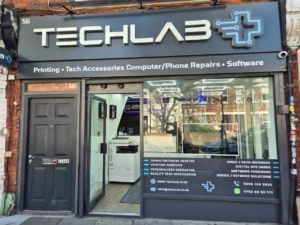
At TechLab+, SSD upgrades are one of the most common (and most effective) fixes we do for customers. And almost every time, the reaction is the same:
“Wow… my laptop feels brand new again!”
Here’s a clear, human-friendly walkthrough explaining what an SSD upgrade is, why it works so well, and how the process actually happens.
Why an SSD Upgrade Makes Such a Big Difference
If your laptop is still running on a traditional hard drive (HDD), that’s likely the biggest reason it feels slow. HDDs use spinning disks — old technology that simply can’t keep up with modern performance needs.
Switching to an SSD gives you:
Lightning-Fast Speed
Boot your laptop in seconds. Apps launch instantly. No more waiting.
Better Durability
SSDs have no moving parts, so they don’t get damaged easily from bumps or shocks.
Longer Battery Life
They run cooler and use less power — perfect for students, remote workers, and travelers.
Silent Operation
No spinning disks, no clicking sounds — just smooth, quiet performance.
If your laptop freezes often or feels sluggish, an SSD upgrade is hands-down the fastest way to fix it.

Before Upgrading: What You Should Know
To make the upgrade smooth, there are a few things to check:
1️⃣ Compatibility
Laptops usually support either:
- 2.5″ SATA SSD, or
- M.2 NVMe SSD
At TechLab+, we check your laptop model and suggest the best option.
2️⃣ Backup Your Data
Important files, documents, photos — make sure everything is backed up.
(We can help with this too if you prefer.)
3️⃣ Cloning vs Fresh Install
You can either:
- Clone your old drive (keep everything exactly how it is), or
- Do a clean installation, which gives the laptop a fresh start.
Cloning is faster. Fresh install gives better long-term performance. We help you choose the right option.
Step-by-Step: How an SSD Upgrade Works
Whether you’re curious or planning to DIY, here’s how the process usually goes:
Step 1: Power Off the Laptop
Turn it off completely and remove the battery (if removable).
Step 2: Open the Back Panel
Depending on your model, this may be a small drive panel or the full back casing.
Step 3: Locate the Existing Storage Drive
- A 2.5″ HDD is usually in a bracket
- An M.2 drive is held by one small screw
Step 4: Remove the Old Drive
Slide it out gently from the connector.
Step 5: Install the New SSD
- For SATA SSD: Slide into the same connector
- For M.2 NVMe: Insert at an angle → press flat → screw into place
Step 6: Close the Laptop & Reassemble
Step 7: Install/Clone the System
- If cloned, it should boot up instantly
- If fresh install, reinstall Windows or macOS using a USB installer
Common Issues During SSD Upgrades
Not every upgrade goes perfectly. Here are the most common problems we see:
Laptop doesn’t detect the new SSD
Usually caused by:
- Loose connection
- Wrong SSD type
- Outdated BIOS settings
Cloning fails
Not all software works well with every SSD brand.
Sometimes a clean install is the best option.
SSD still feels slow
This can happen if the SSD is connected to an older SATA port that limits speed.
At TechLab+, we troubleshoot these issues daily and make sure everything runs perfectly before handing your laptop back.
DIY vs Professional Upgrade — What Should You Choose?
SSD upgrades are generally easy, but some laptops are more complicated:
- Ultra-thin notebooks
- MacBooks
- Modern Windows laptops with hidden screws or adhesive
- Models where the internal battery is difficult to disconnect
If you’re not comfortable opening your laptop, it’s better to let a professional handle it. One wrong move can damage connectors or void warranties.
At TechLab+, we:
- Install the SSD
- Clone your data (if you want)
- Set up the OS
- Run full diagnostics
- Make sure everything is optimized
All with high-quality SSDs and professional tools.
Final Thoughts: The Easiest Way to Speed Up Your Laptop
If your laptop is slow, freezing, or taking too long to boot, an SSD upgrade is the fastest and most affordable way to revive it.
Instead of buying a new device, upgrading to an SSD gives you:
✔ Faster load times
✔ Better performance
✔ Longer battery life
✔ A smoother overall experience
Want the Upgrade Done Professionally?
Bring your laptop to TechLab+ (Ealing) and we’ll upgrade your SSD safely, quickly, and with care.
Your laptop will feel like it’s fresh out of the box — without the cost of a new one.