
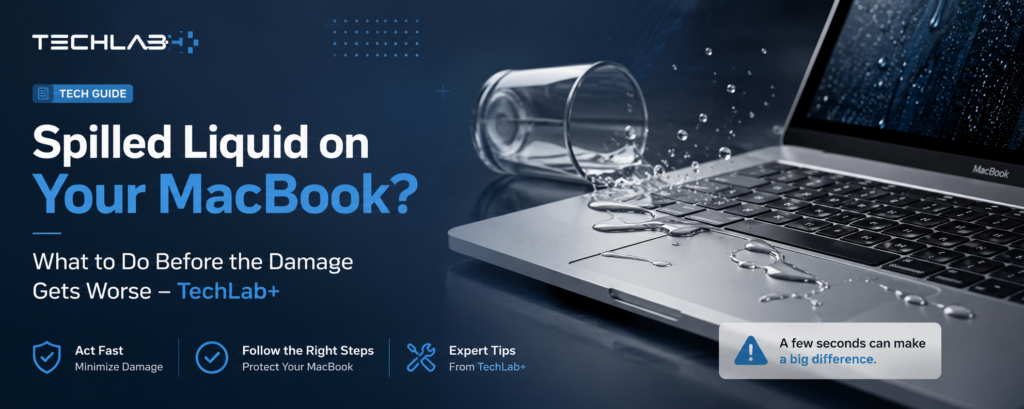
Spilled Water on Your MacBook? Don’t Ignore It
It only takes a second. One accidental coffee spill, a knocked-over water bottle, or even rain exposure can seriously damage a MacBook.
A lot of people make the mistake of thinking their laptop is “fine” just because it still turns on after the spill. In reality, liquid damage often starts slowly inside the device. Corrosion can continue spreading across the motherboard for days or even weeks after the accident.
At TechLab+, we regularly see MacBooks that could have been saved easily if they had been checked earlier. Unfortunately, many customers wait until the laptop stops charging, overheats, or completely dies before bringing it in.
If your MacBook has been exposed to liquid recently, acting fast can make a huge difference.
Why Liquid Damage Is So Dangerous for MacBooks
Modern MacBooks are powerful but extremely compact inside. The internal components sit very close together, which means even a small amount of liquid can reach important circuits quickly.
When liquid enters the system, it can affect:
- The logic board (motherboard)
- Battery connectors
- Charging circuits
- Keyboard and trackpad
- Screen backlight connectors
- SSD and storage components
- Cooling system
The biggest issue is not always the liquid itself — it’s the corrosion that starts afterwards. Minerals and residue left behind by water, coffee, juice, or soft drinks slowly eat away at internal components. Sugary drinks are especially damaging because they leave sticky conductive residue inside the laptop.
Common Signs of MacBook Liquid Damage
Sometimes the symptoms appear immediately. Other times, they show up days later.
Here are the most common warning signs we see at TechLab+:
1. MacBook Won’t Turn On
One of the most obvious signs. The laptop may appear completely dead after exposure to liquid.
This can happen due to:
- Short-circuits
- Damaged power rails
- Faulty charging ICs
- Corroded motherboard components
2. Keyboard Stops Working Properly
Liquid often spreads underneath the keyboard first.
Common keyboard issues include:
- Sticky keys
- Double typing
- Certain keys not responding
- Keyboard backlight problems
3. Trackpad Issues
After liquid exposure, the trackpad may:
- Stop clicking properly
- Become unresponsive
- Move the cursor randomly
- Register ghost touches
4. Charging Problems
A damaged charging circuit may cause:
- “Battery not charging” messages
- Slow charging
- Random shutdowns
- Failure to detect the charger
5. Screen Problems
Liquid damage can also affect display connections.
You may notice:
- Flickering screen
- Vertical lines
- Dim display
- Black screen
- Backlight failure
6. Overheating & Fan Noise
When corrosion damages temperature sensors or power circuits, the MacBook may:
- Overheat quickly
- Run fans constantly
- Become unusually hot during normal use
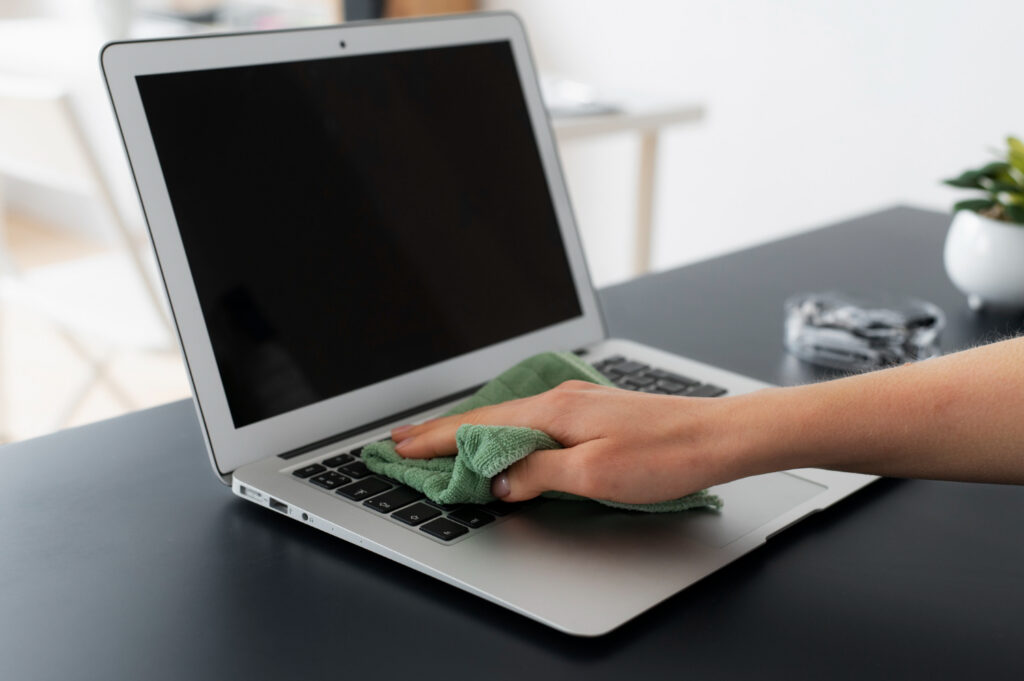
What You Should Do Immediately After Spilling Liquid on a MacBook
The first few minutes are extremely important.
Step 1: Turn Off the MacBook Immediately
Do not continue using it. Even if the laptop still works, electrical current moving through wet components can create major internal damage. Hold the power button until the MacBook fully shuts down.
Step 2: Disconnect Everything
Remove:
- Charger
- USB devices
- SD cards
- External accessories
This reduces the risk of electrical short-circuits.
Step 3: Place the MacBook Upside Down
Position it carefully in an upside-down “tent” shape. This can help stop liquid from spreading deeper into the motherboard area.
Step 4: Do NOT Use a Hair Dryer
Heat can damage internal components and push moisture deeper inside the laptop.
Avoid:
- Hair dryers
- Ovens
- Microwaves
- Heaters
Step 5: Don’t Trust the Rice Method
One of the biggest myths online is putting electronics in rice. Rice does not remove liquid trapped under chips or inside connectors. It also introduces dust particles into the system. Professional internal cleaning is still required.
Why MacBooks Sometimes Fail Days Later
This confuses many users.
A customer spills water on the MacBook, dries it quickly, and it seems completely normal for a few days. Then suddenly:
- It stops charging
- The keyboard fails
- The screen goes black
- The laptop won’t boot
This happens because corrosion spreads slowly over time.
As residue builds up internally:
- Copper traces begin oxidising
- Power delivery becomes unstable
- Components start failing one by one
That’s why early diagnostics are extremely important.
How TechLab+ Repairs Liquid-Damaged MacBooks
At TechLab+, we take a professional component-level repair approach rather than simply replacing expensive parts unnecessarily.
Full Internal Diagnostics
We carefully inspect:
- Logic board
- Battery
- Charging circuits
- SSD
- Keyboard connectors
- Display connectors
This helps identify exactly which components were affected.
Internal Cleaning
We remove corrosion and residue from internal components using professional cleaning methods. This step is critical because corrosion can continue spreading if not cleaned properly.
Component-Level Repairs
Instead of replacing the entire motherboard immediately, we can often repair individual damaged components such as:
- Charging ICs
- Capacitors
- Power circuits
- Connectors
This can save customers a significant amount of money.
Keyboard & Trackpad Repairs
If liquid has damaged the input system, we can replace:
- Keyboard assemblies
- Trackpads
- Flex cables
- Backlight components
Data Recovery Assistance
One of the biggest concerns after MacBook liquid damage is whether important files can still be recovered.
On many newer MacBook models, the storage chips are integrated directly into the motherboard rather than being separate removable drives. Because of this, data recovery is often only possible if the motherboard can first be professionally repaired back to a stable working condition.
Some older or specific MacBook models may have separate storage drives, which can sometimes allow data recovery without full motherboard repair — as long as the storage itself has not been damaged by the liquid.
This is why it’s very important to avoid repeatedly trying to power the MacBook on after a spill, as this can worsen motherboard damage and reduce the chances of successful data recovery.
Can a Water-Damaged MacBook Be Saved?
In many cases — yes.
The success rate usually depends on:
- How quickly the laptop was powered off
- Type of liquid involved
- How long the liquid remained inside
- Whether corrosion has already spread
Plain water is usually less damaging than:
- Coffee
- Tea
- Soft drinks
- Alcohol
- Juice
Sugary or acidic liquids tend to cause much more severe corrosion..
Is It Better to Repair or Replace a Liquid-Damaged MacBook?
This depends on the extent of damage.
Minor liquid damage may only require:
- Cleaning
- Small component replacement
- Keyboard repair
Severe damage may involve:
- Logic board repair
- Screen replacement
- Battery replacement
At TechLab+, we always diagnose the MacBook first and explain the repair options clearly before proceeding.
Sometimes repair is far more affordable than replacing the entire laptop — especially for newer MacBook models.
How to Reduce the Risk of Future Liquid Damage
Accidents happen, but these habits can help protect your device:
Keep Drinks Away From Your Workspace
Simple but effective.
Use a Protective Carry Sleeve
Especially useful during travel.
Avoid Using MacBooks Near Pools or Kitchens
Steam and accidental splashes are more common than people think.
Backup Important Files Regularly
Even if the laptop cannot be saved, backups protect your data. Cloud backups and external drives are highly recommended.
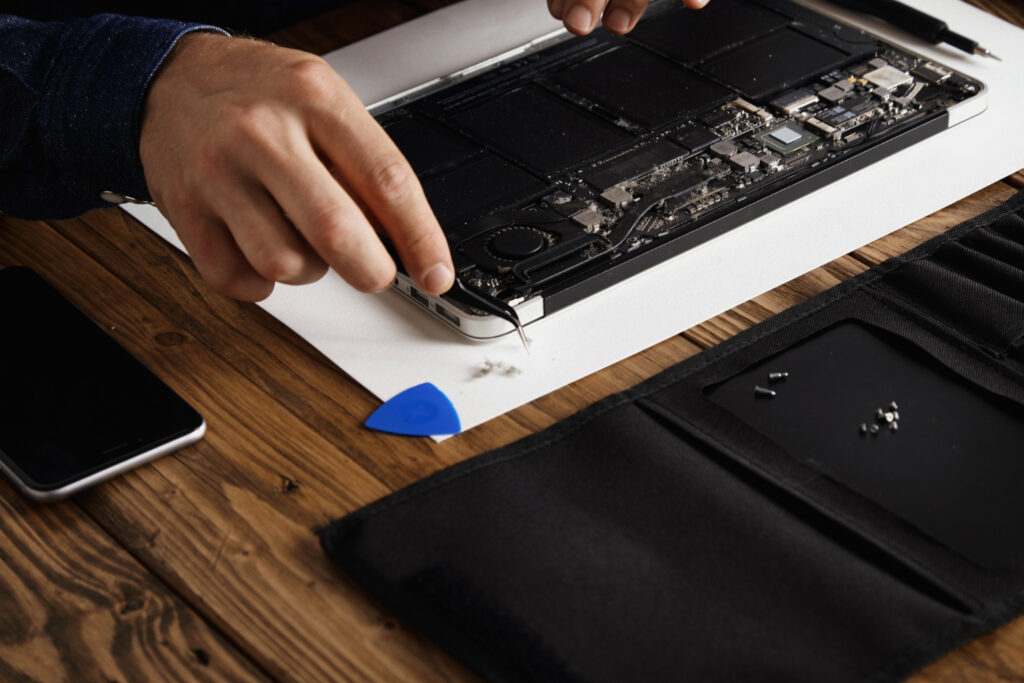
Why Customers in Ealing Choose TechLab+ for MacBook Repairs
At TechLab+, we work on a wide range of MacBook issues every week, including:
- Liquid damage
- Charging problems
- Screen replacement
- Keyboard repairs
- Battery replacement
- Logic board issues
Customers choose us because we focus on:
- Honest diagnostics
- Fast turnaround times
- Professional repairs
- Clear communication
- High-quality replacement parts
We help customers across:
- Ealing
- Brentford
- Hanwell
- Boston Manor
- Northfields
- Nearby West London areas
Final Thoughts
Liquid damage should never be ignored — even if your MacBook still appears to work normally after the spill.
Corrosion can quietly spread inside the system and turn a small repair into a major motherboard failure later.
The sooner the laptop is professionally inspected, the better the chances of preventing expensive damage and protecting your data.If your MacBook has been exposed to water, coffee, tea, or any other liquid, TechLab+ can help diagnose the issue and recommend the best repair solution before the damage gets worse.